FAQ
This is a compact FAQ with short, actionable steps for common issues users hit when working with WindowGen.
Q: Blender crashes when I try to add a Window. What do I do?
Short fix (try in this order):
Open the Outliner and switch to Blender File view.
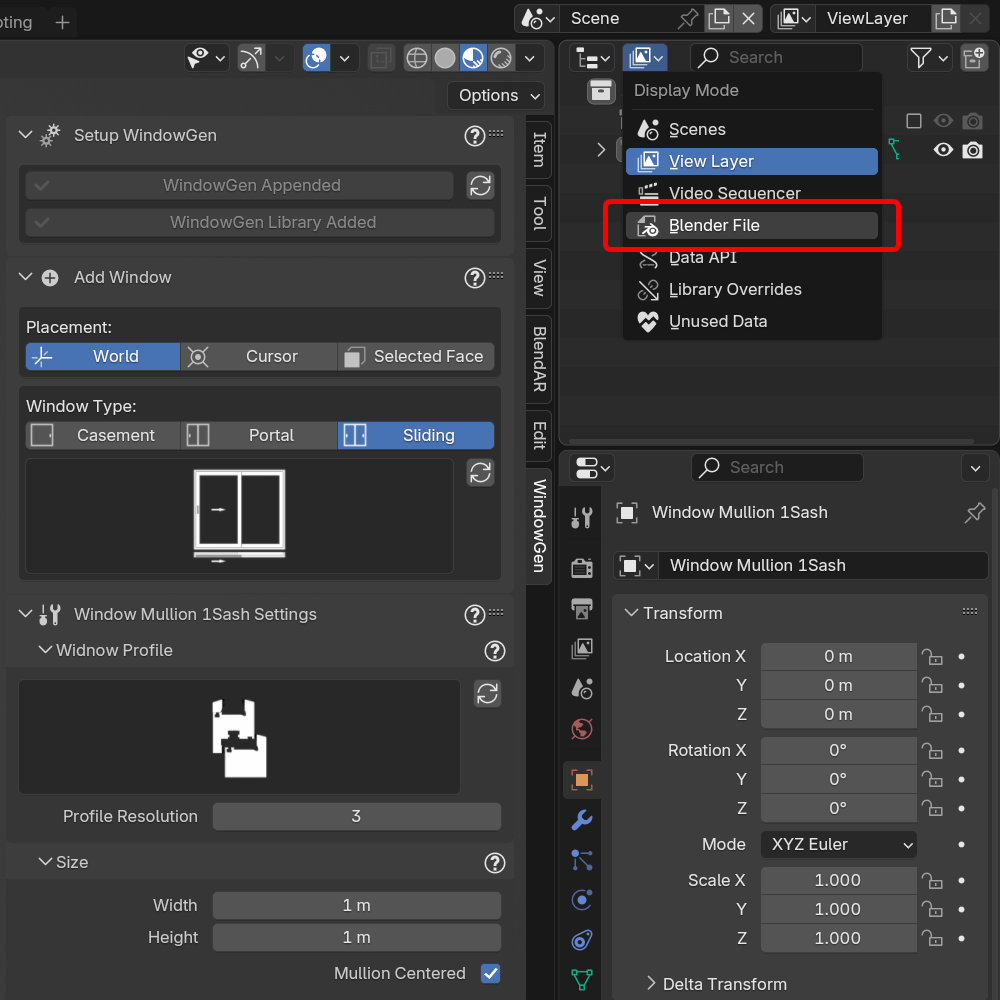
Expand Libraries.
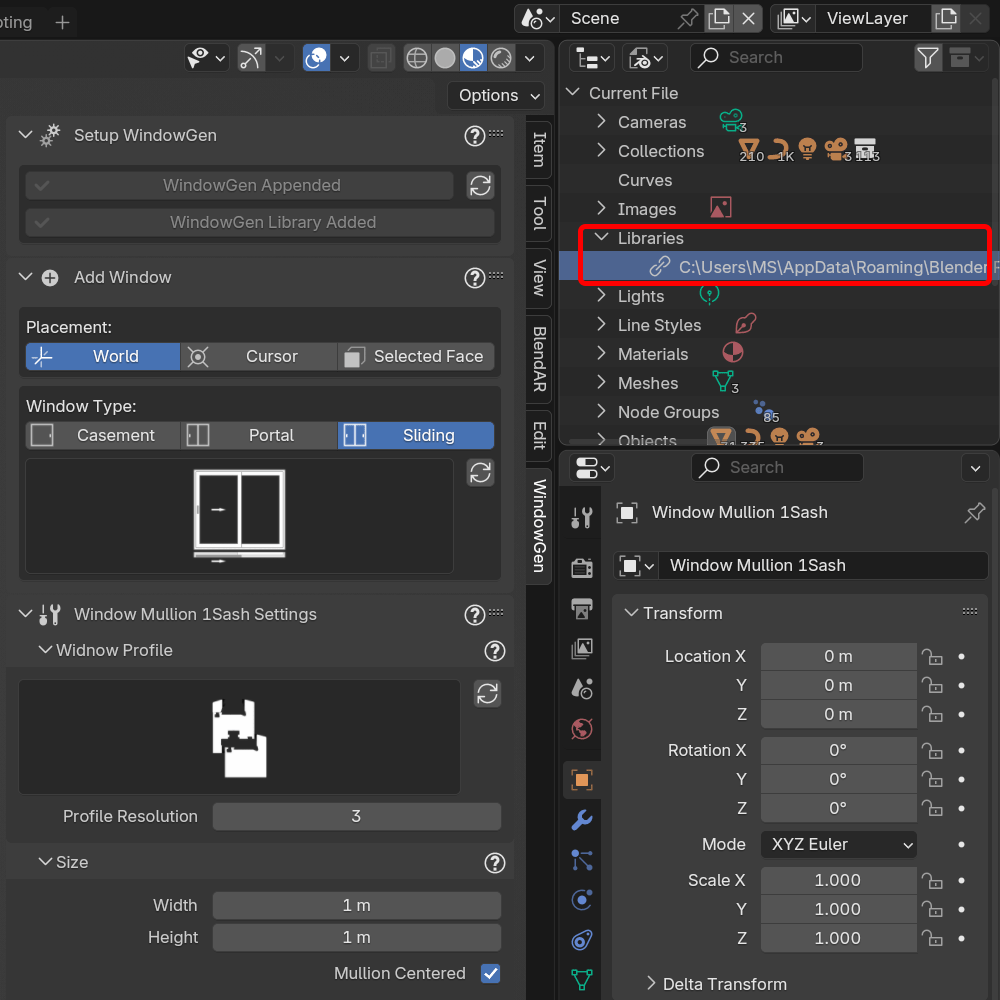
Right‑click the WindowGen library and select Reload.
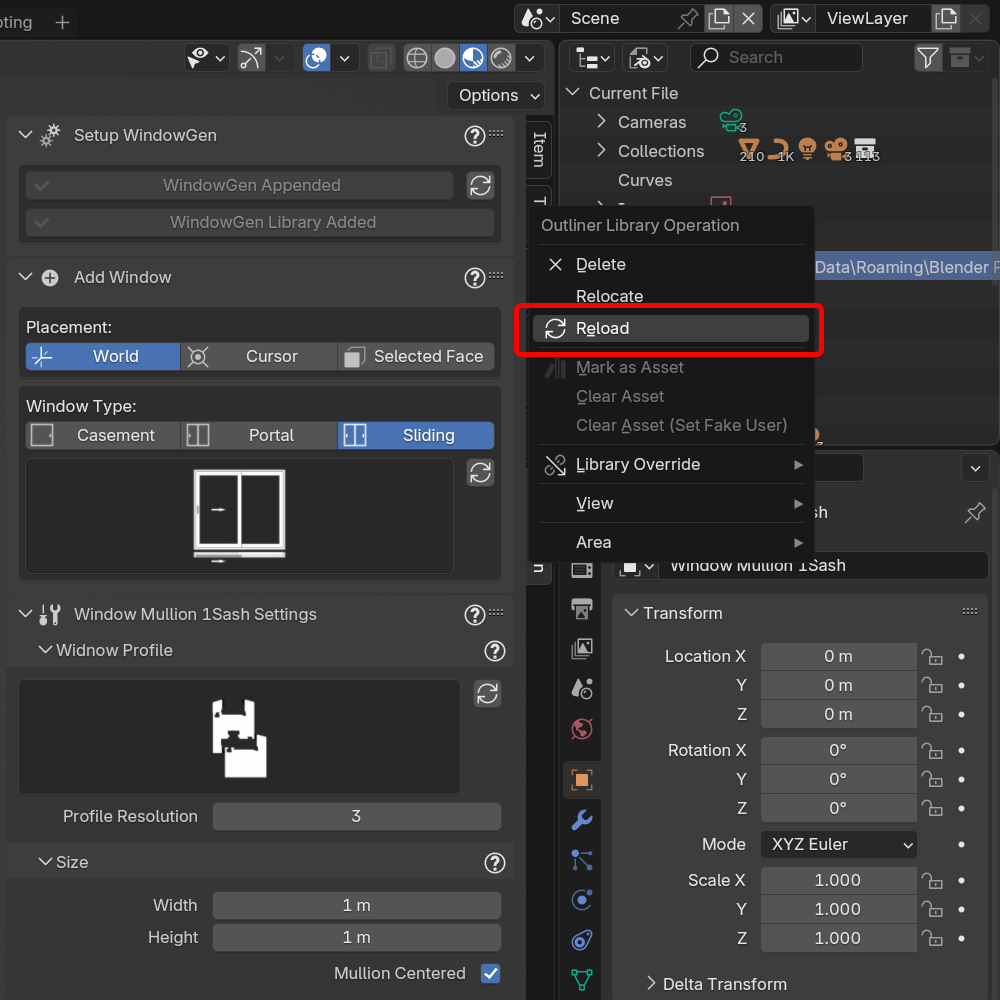
Save the .blend and retry to add the Window.
Q: The Blender is slow and it takes a long time to load and modify the windows. What should I do?
Short answer:
This slowdown is a known issue with Blender 4.5 and has been reported. For now we recommend using a Blender version prior to 4.4 for best performance with WindowGen.
Quick steps:
If you are on Blender 4.5, try opening the file in Blender 4.4 (or earlier) and test performance.
Keep WindowGen updated to the latest add-on release.
Q: All the windows are missing in my scene. How can I restore them?
Short answer:
WindowGen should automatically prompt to update the library when needed — accepting the prompt usually restores missing windows. If no prompt appears, manually relocate the WindowGen library via the Outliner.
Quick steps:
Look for add-on prompt asking to update WindowGen — accept it if shown.
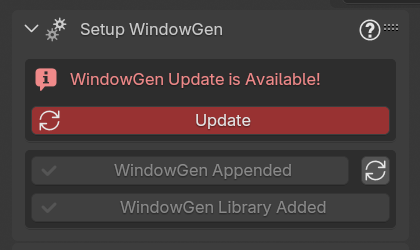
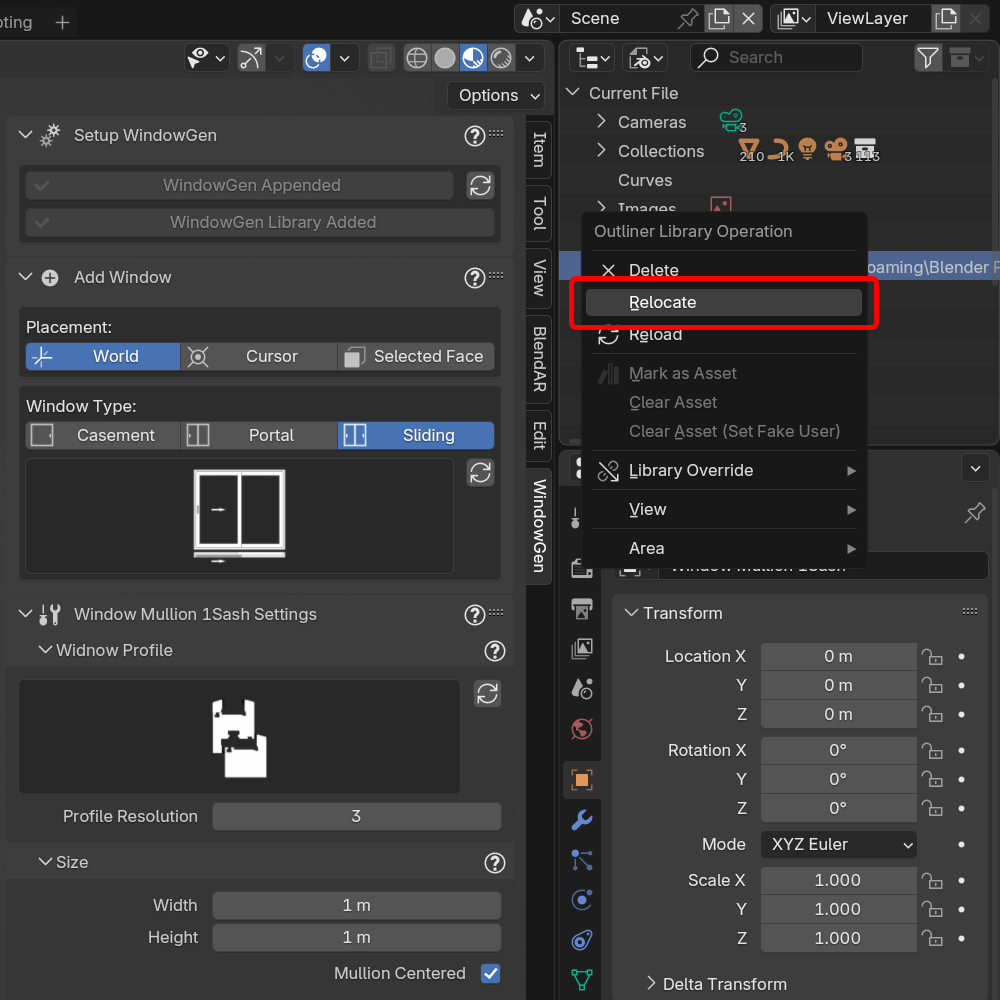
If not prompted: follow the steps below to manually relocate the WindowGen library to the latest WindowGen.blend
Open the Outliner and switch to Blender File view.
Expand Libraries.
Right‑click the WindowGen library and select Relocate.
Tip
WindowGen.blend is usually stored inside the WindowGen add-on assets folder in your Blender user directory. Replace
<username>and<version>(e.g.4.4) before using the paths below.# Windows (typical) C:\Users\<username>\AppData\Roaming\Blender Foundation\Blender\<version>\extensions\user_default\windowgen\assets\WindowGen.blend # macOS (typical) /Users/<username>/Library/Application Support/Blender/<version>/extensions/user_default/windowgen/assets/WindowGen.blend # Linux (typical) /home/<username>/.config/blender/<version>/extensions/user_default/windowgen/assets/WindowGen.blend
If you prefer variables: on Windows you can use
%APPDATA%\Blender Foundation\Blender\<version>\....After relocating, windows should reappear in your Scene.
If the issue persists, check the modifier stack for multiple Auto Smooth modifiers. Remove any duplicates and reapply Auto Smooth.